Cost of Goods Sold in WooCommerce — how to switch it on and fill in your costs
WooCommerce has recorded the cost of goods sold on every order since version 10.3. It is switched off by default, nothing is filled in backwards, and three things about it are genuinely surprising. Here is the whole picture in one page.
Updated 2026-10-16
What the field is, and why it arrived so late
WooCommerce has always known what you sold. Until late 2025 it had no idea what those goods cost you, which is why “how much did I actually earn” was a question you answered in a spreadsheet, or paid a monthly subscription for.
In WooCommerce 10.3, released on 22 October 2025 after two beta cycles, the cost of goods sold became part of the core. Two things happen with it, and only the second one is interesting:
- on the product, you can store a cost — a single net figure per item;
- on every order line, WooCommerce stores the cost as it stood at the moment of sale.
That second one is the part no plugin could retrofit properly. A cost stored on the order is a historical fact: an order from March still says what the goods cost in March, even after your supplier has raised prices twice. A cost looked up from today’s product record is just today’s guess applied to last year’s sales.
The feature is opt-in, and it does nothing at all until you switch it on.
Step one — switch the feature on
WooCommerce → Settings → Advanced → Features → Cost of Goods Sold.
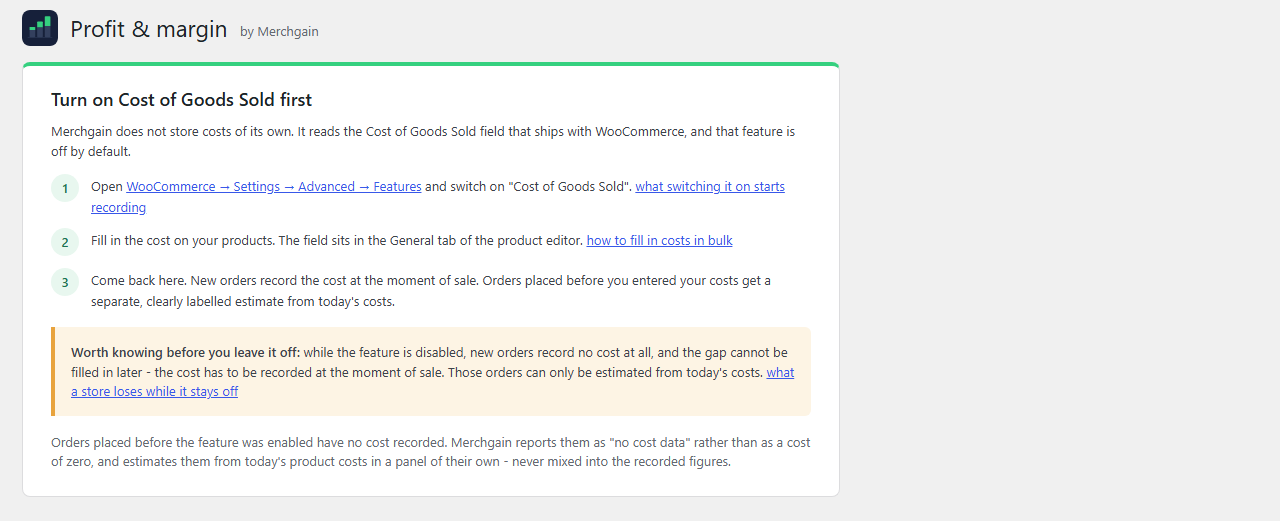
It is a checkbox, it changes no data by itself, and it is a WooCommerce setting rather than anything to do with a reporting plugin. If the entry is not in that list, your shop is on a version older than 10.3 — check WooCommerce → Status and update first.
Leaving it off has a price that is paid silently: while the feature is disabled, new orders record no cost at all, and that gap cannot be filled in later. Six months of orders taken with the switch off are six months no profit report will ever be able to explain.
Step two — enter the cost on a product
The field sits in the General tab of the product editor, right under the price fields, and it is called Cost of goods. Three details matter:
- it is net, like the other price fields — no tax;
- it is per one item, not per order line;
- empty is not zero. An empty field means “we do not know”, and a good report will treat it that way instead of quietly assuming the goods were free.
Enter the cost you actually pay for the goods. Whether you include inbound shipping, customs or packaging is your decision, but make the same decision for every product — a margin computed from two different definitions of cost is not comparable with anything.
Step three — let the orders come in
From the moment the cost is on the product, every new order records it. Orders already in the database keep whatever they recorded at the time, which for older orders means nothing at all.
There is no back-fill, and this is deliberate rather than an omission. It also means the useful question after setting this up is not “why is my history empty” but “which period do I have complete data for”.
Filling in costs without clicking through 500 products
The core admin gives you one cost field per product and no bulk editor for it. Two things make this manageable.
First, you do not need every product. Sort your catalogue by revenue and start at the top. In most shops fifty products carry the large majority of the turnover, so an evening of typing gets your coverage from 0% to something like 80% — and coverage is what makes the rest of the report worth reading.
Second, the cost is scriptable. From WP-CLI, one call per product:
wp eval '$p = wc_get_product( 123 ); $p->set_cogs_value( 41.50 ); $p->save();'To drive it from a spreadsheet, export id,cost as CSV and loop over it in a small script
calling the same two methods. The REST API carries the same value as a cost_of_goods_sold
object on products and variations, if you would rather work over HTTP.
The whole route - sheet template, a ready script, a dry run and a list of what it will not fix
- is laid out in filling in costs in bulk.
All of that writes to your shop, so try it on a copy first and keep a backup. It is your script and your data — no reporting plugin needs to be involved, and Merchgain deliberately cannot do it for you.
Variable products — inherit, replace, or add
A variation inherits its parent’s cost unless it has one of its own. If it does, one more switch decides what that means: the variation cost either replaces the parent’s or is added to it.
The additive mode is the one to remember, because it is genuinely useful and easy to miss. A shirt with a cost of 24 and a variation marked additive at 3 costs 27 — right when the variation is a surcharge, such as embroidery or an oversized print, rather than different goods.
One trap comes with it: WooCommerce’s lookup column stores the entered value, not the effective one, so a variation that simply inherits the parent’s cost looks like a variation with no cost at all. Any list of “products with no cost” that ignores the parent will be full of false alarms. The details are in costs on variable products.
Three traps the documentation does not mention
All three were read in the WooCommerce source, and all three change numbers on a screen. They are worth knowing before you build a spreadsheet on top of this data. The full version, with the one line of code all three come from, is in three traps in WooCommerce cost data.
A cost of zero is stored as no cost at all
When an order line’s cost is saved as zero, the core deletes the value instead of storing a zero. So a free sample and a product nobody has costed are the same absence in the database, and no plugin can tell them apart. Freebies will always show up on a missing-cost list. The full explanation.
A refund rewrites the recorded cost of the whole order
Creating a refund makes WooCommerce recalculate the cost of every line on the original order using each product’s cost as it is today. If your buying price has changed in the meantime, the stored history changes with it — and if the cost was cleared, the recalculation produces zero, which deletes the value for good. Why historical profit changes.
Switching the feature off can lose data on the next save
Measured on WooCommerce 10.3.0, turning the feature off does not delete anything by itself. The risk is the next save: with the feature disabled the cost calculates as zero, and a zero save deletes the value — so editing an old order, or issuing a refund against it, can clear its cost history. What switching it off does.
What a report can do with it
The core records the cost and stops there — WooCommerce 10.3 shipped no COGS reports at all, and the release post explicitly invited developers to build them. WooCommerce Analytics does not read it either — why the cost is not in Analytics. Outside the shop, Google’s automated discounts for Shopping ads want the same cost in your product feed — what that setup needs. This is what Merchgain does with the same data:
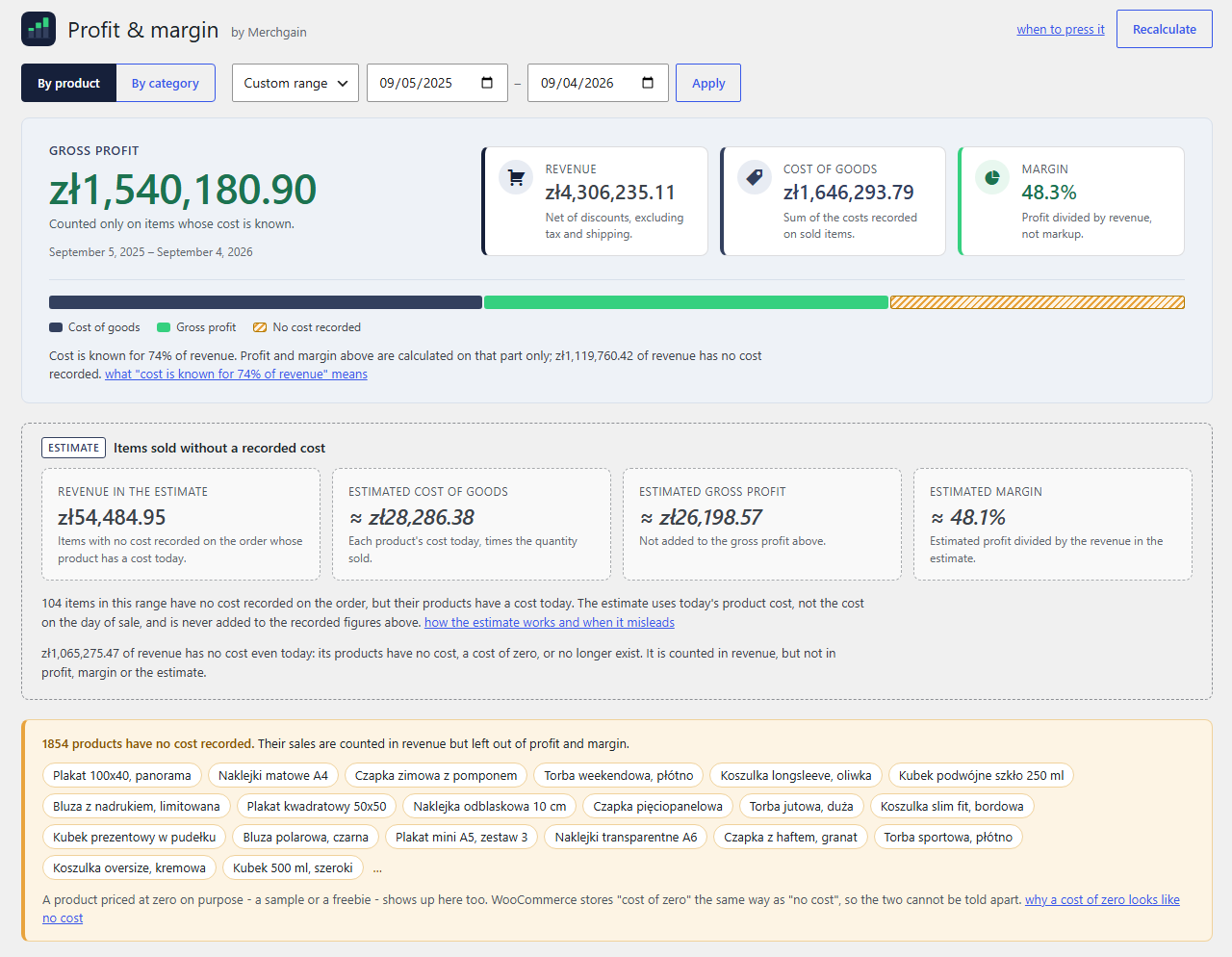
Gross profit, revenue, cost of goods and margin for the period — the same numbers per product and per category further down the screen — and, under them, the line that decides whether any of it is usable:
Cost is known for 74% of revenue. Profit and margin above are calculated on that part only; zł1,119,760.42 of revenue has no cost recorded.
That sentence is the difference between a report you can act on and a precise-looking report that is quietly wrong by a quarter. You can see the whole screen with demo data before installing anything.
When the feature is still off, a report has nothing to show, and saying so beats four zeroes:
The short checklist
- WooCommerce 10.3 or newer — check WooCommerce → Status.
- Switch on Settings → Advanced → Features → Cost of Goods Sold.
- Decide once what “cost” includes for you, and write it down somewhere.
- Enter costs top-down by revenue, not alphabetically.
- For variations, pick one convention per product — inherit, replace, or add.
- Do not expect history to fill in. Judge the report on the period after the costs went in.
- Export a CSV at the end of each month. Refunds and cost edits can rewrite recorded costs; a monthly export is the only record nothing else can change.
Something here disagreeing with what you see in your own shop is worth an email — every message is read, and the answers on this site get corrected when they turn out to be wrong.